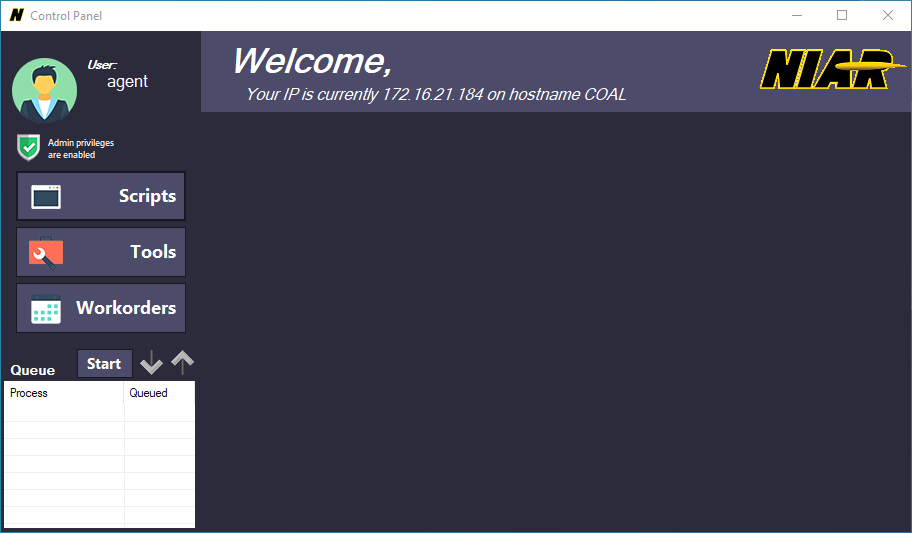
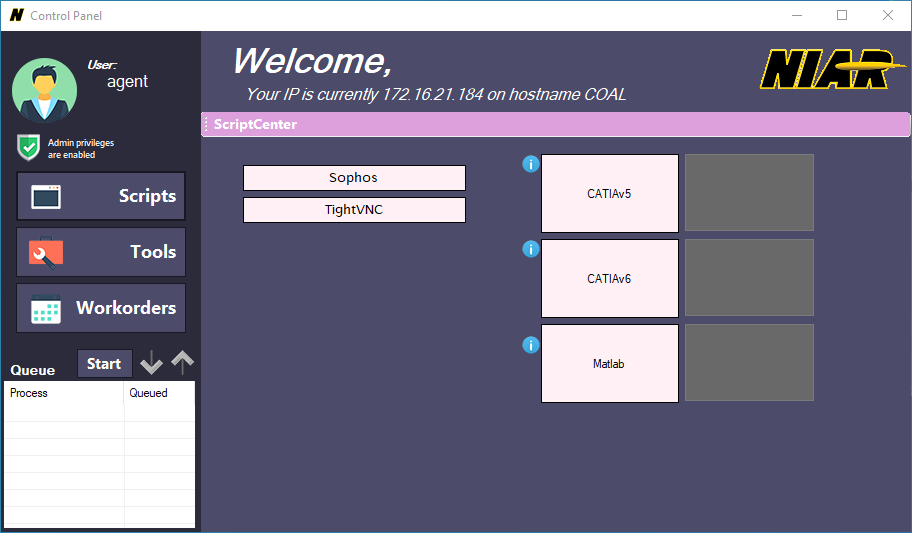
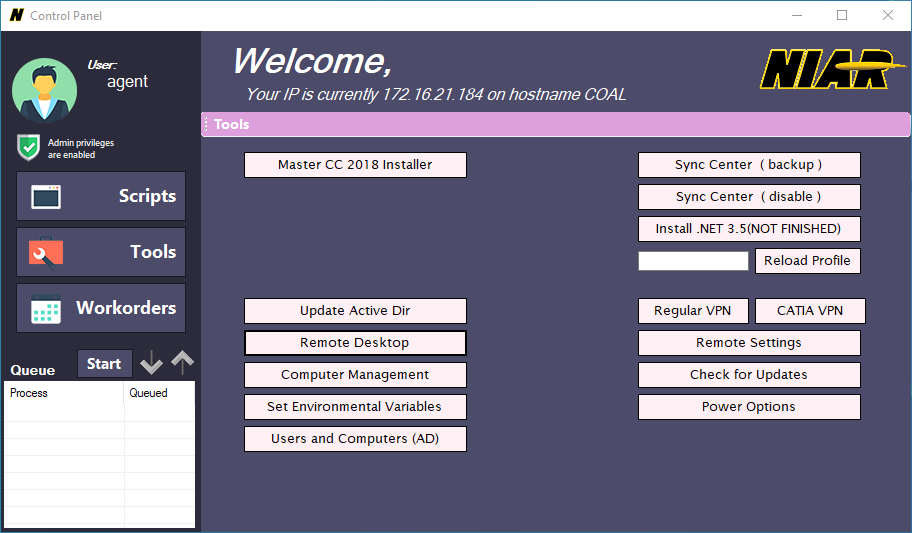

The NIAR Control Panel
Written in Visual C# .NET 2018-2019
When I first began at NIAR, many of their systems were very archaic. Whether it was how they had setup their Active Directory or the way they went about desktop support for their employees. I found an issue in this and put myself up to the task of trying to solve these problems.
SyncCenter
It first began with SyncCenter. SyncCenter was a Windows feature that our Windows images had turned on by default. Essentially what the program would try to do was cache your network files locally so that if you were to lose connection to the NIAR network, you would still be able to work on and save your files and SyncCenter would attempt to sync your data back up to the network once you were reconnected. This sounds great and all until you realize it doesn't really work..
This was due to multitude of reasons that spanned from:
- Another user using the same document and saving their new changes before the original User was able to re-sync (causing a version mismatch)
- Users on the VPN with spotty connections resulting in never re-syncing their data back up to the network
- The same user having the document open on another PC (causing another version mismatch)
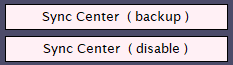
Thus, my first script was born. When I first got to NIAR, in order to disable SyncCenter it required changing registry keys, giving our admin account access to the directory where SyncCenter would cache files, and not to mention restarting the PC twice during this process. My script did all this without restarting the PC, and took over permissions for the directories and copied them to a much more accessible location for the User to have access to.
Batch Scripts
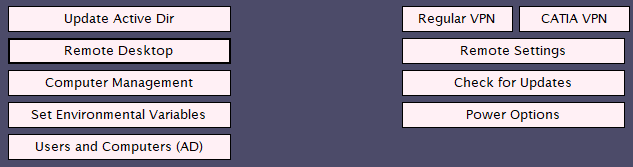
After the success of my SyncCenter script and seeing how useful batch files could be I began automating nearly everything I could. Many of these scripts were processes we had to do when imaging a new computer, others just made life easier. Because my application used the Windows Credentials of the user who launched it, you could launch it as an Admin account and be able to Update Active Directory, set system environmental variables, or be able to check for windows updates and change firewall settings.
Automating Installs
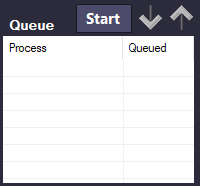
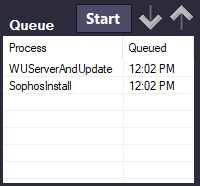
With many of these processes and installs now being automated, I decided there needed to be some way to "queue" them up and theoretically be able to walk away from the computer and still have installs running.
At the time, I was also in a class at WSU called "Operating Systems". This class taught us all about processes, mutexs, working with CPU threads, and memory mangement. I attempted to apply some of the things we had learned by creating a "Process Queue". Which would get the process ID of the current install/script running and waited until it would complete before beginning the next install or script. With this implementation, I was now able to nearly load an entire PC once we got it onto our domain and simply walk away from it. This gave me much more time to work on other tickets and overall reduced the complexity of my job.